
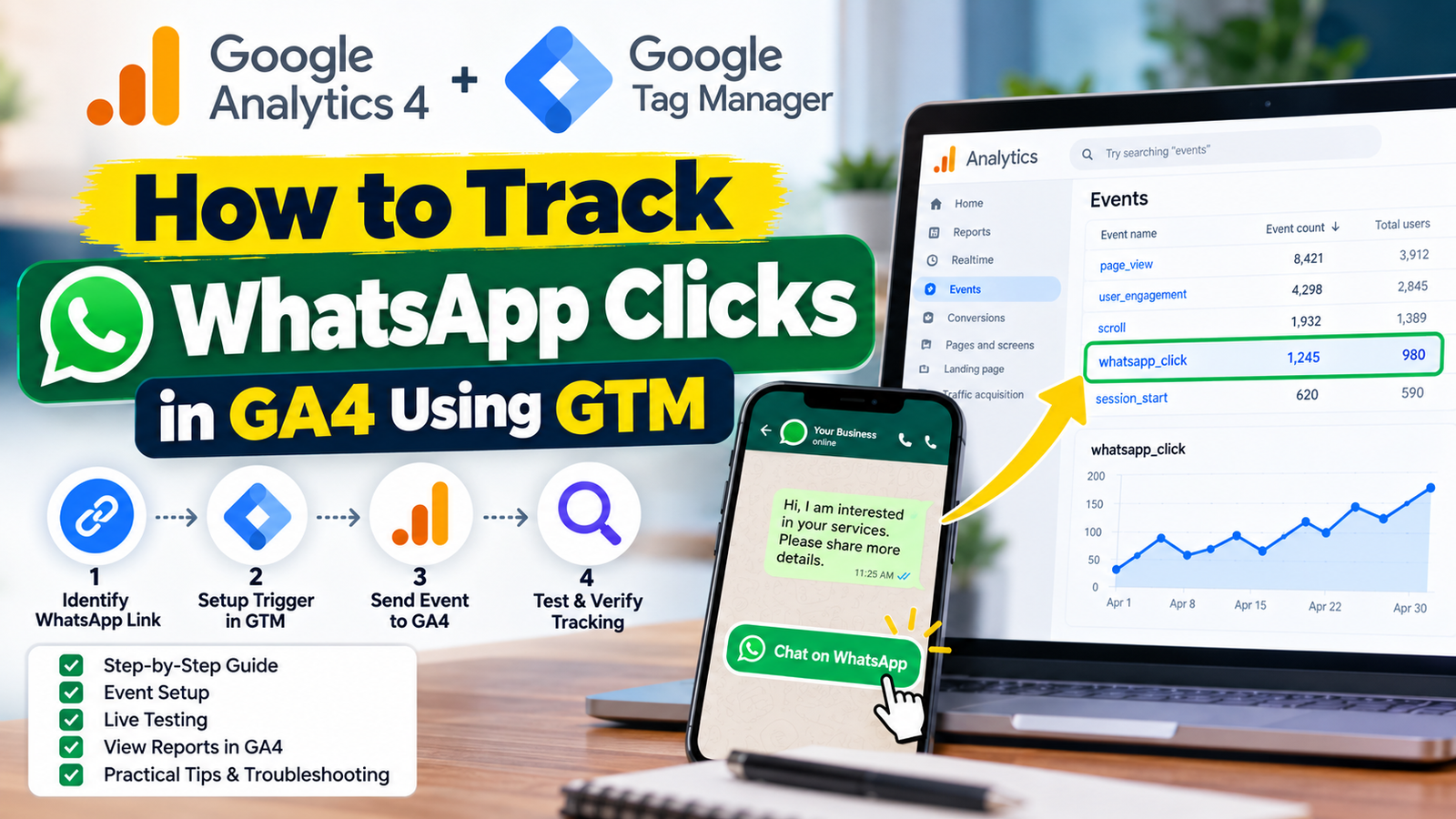
WhatsApp has become an important communication channel for businesses that want to receive enquiries, answer customer questions, and generate leads through their websites. Many businesses add a WhatsApp button to their website, but they do not know how many visitors click it or which pages encourage people to start a conversation.
This creates a measurement gap. You may receive website traffic from Google, social media, or paid advertising, but without proper tracking, it can be difficult to understand which visitors show an interest in contacting your business through WhatsApp.
The solution is to track WhatsApp button clicks in Google Analytics 4 (GA4) using Google Tag Manager (GTM).
In this guide, you will learn how to configure a WhatsApp click event, test it, view the data in GA4, and use the information to improve your digital marketing strategy.
Whether you manage a WordPress website, a service business website, or a landing page for lead generation, this tutorial will help you build a more measurable marketing funnel.
What Is WhatsApp Click Tracking in GA4?
WhatsApp click tracking is a measurement process that records when a visitor clicks a WhatsApp link or button on your website.
Google Analytics 4 can collect this interaction as an event. Google Tag Manager helps you detect the click and send the event to your GA4 property without manually adding tracking code to every button.
For example, imagine that a digital marketing agency has a WhatsApp button on its homepage, services page, and contact page.
With appropriate tracking, the agency can analyse:
- How many WhatsApp button clicks occur.
- Which website pages generate the most clicks.
- Which traffic sources bring visitors who click WhatsApp links.
- Whether a marketing campaign generates WhatsApp click activity.
- How WhatsApp click activity changes over time.
However, there is an important distinction: a WhatsApp button click does not necessarily mean that a message was sent or a lead was generated.
Tracking the click measures an action on your website. It does not automatically confirm that the visitor opened WhatsApp successfully, sent a message, or became a customer.
Understanding this limitation is essential for accurate conversion reporting.
Why Should You Track WhatsApp Clicks on Your Website?
If WhatsApp is an important enquiry channel for your business, click tracking can provide useful insights into visitor behaviour.
1. Identify Pages That Generate More Enquiries
Suppose your website has WhatsApp buttons on your homepage, service pages, and blog posts.
By passing page information with the event, you can identify which pages encourage more visitors to click the WhatsApp button.
This can help you decide where to improve calls to action, service information, and page layouts.
2. Understand Marketing Campaign Performance
Visitors may arrive through organic search, Google Ads, Meta Ads, referral links, or direct visits.
GA4 can help you analyse WhatsApp click events alongside available traffic-source and campaign information, subject to your tracking configuration and reporting limitations.
This gives you a better understanding of which channels bring visitors who express interest in contacting your business.
3. Improve Your Lead Generation Funnel
A WhatsApp click can be one step in your customer journey:
Website visit → WhatsApp button click → WhatsApp conversation → Qualified lead → Customer.
Each step represents a different outcome.
By measuring website clicks and separately recording actual enquiries and qualified leads, you can identify gaps between initial interest and business results.
4. Make Better Marketing Decisions
Instead of judging a page only by traffic volume, you can also examine whether visitors take meaningful actions.
For example, a blog post with fewer visitors but more relevant WhatsApp clicks might deserve further content development. You should still assess lead quality and actual business outcomes before deciding where to invest.
Tools Required to Track WhatsApp Clicks in GA4
Before starting the implementation, make sure you have access to the following tools.
| Tool | Purpose |
|---|---|
| Google Analytics 4 | Collects and reports website events |
| Google Tag Manager | Detects WhatsApp link clicks and sends events |
| Google Tag Assistant | Helps test your tag configuration |
| Website access | Allows you to verify WhatsApp links and publish changes |
You should also have a GA4 Google tag or Google tag configuration connected to the correct measurement ID in your GTM container.
If GA4 is already installed through GTM, you can normally add the new event tag to the existing setup.
If GA4 is installed separately, check your implementation before adding another Google tag. Duplicate configurations can result in duplicate events or inaccurate reporting.
Official documentation:
- Google Tag Manager: https://tagmanager.google.com/
- Google Analytics: https://analytics.google.com/
- Google Tag Assistant: https://tagassistant.google.com/
Step 1: Check Your Website’s WhatsApp Button
The first step is to identify the WhatsApp link that visitors click.
A website might use a link such as:
It might also use a link such as:
These are illustrative examples. Replace the phone number with your actual business number when implementing a link.
Some websites use a WhatsApp button generated by a WordPress plugin, page builder, chat widget, or custom JavaScript.
How to Find the WhatsApp Link
- Open your website in a browser.
- Right-click the WhatsApp button and select the browser’s inspection option, if available.
- Inspect the button or link element.
- Look for its destination URL, commonly stored in the
hrefattribute. - Note the URL pattern so you can configure the correct GTM trigger.
For example, a standard HTML link might look like this:
<a href="https://wa.me/919876543210">Chat on WhatsApp</a>
You do not need to modify the website’s code just to track a standard link if GTM can detect its click.
If the WhatsApp button is implemented using JavaScript and does not expose a normal link URL, you may need to configure an All Elements trigger or use a custom data layer event, depending on how the button works.
Important: Do not assume that every WhatsApp button uses the same URL pattern. Inspect your own website before proceeding.
Step 2: Enable Click Variables in Google Tag Manager
Google Tag Manager provides built-in variables that help identify which link a visitor clicked.
To use them, open your GTM container.
Follow These Steps
- Navigate to your Google Tag Manager workspace.
- Open the Variables section.
- Under Built-In Variables, select Configure.
- Enable the following variables:
- Click URL
- Click Text
- Click Classes
- Click ID
- Page URL
You can enable other variables if your website requires them, but these are a useful starting point for standard link tracking.
The Click URL variable identifies the destination of a clicked link. Click Text can help identify the visible text of the clicked element, although it may be empty for image-based or icon-only buttons.
The Page URL variable helps identify which page the visitor was viewing when the interaction occurred.
Google’s official guide explains how click triggers and built-in variables work:
Step 3: Create a WhatsApp Click Trigger in GTM
A trigger tells Google Tag Manager when a tag should fire.
In this case, we want the trigger to fire when a visitor clicks a WhatsApp link, rather than when they click every link on the website.
Create the Trigger
- Open Triggers in GTM.
- Click New.
- Name the trigger
WhatsApp Click Trigger. - Click Trigger Configuration.
- Select Just Links.
- Choose Some Link Clicks.
- Add conditions that identify your WhatsApp destination URLs.
For a standard WhatsApp link, you can start with the following condition:
| Variable | Operator | Value |
|---|---|---|
| Click URL | contains | wa.me |
If your website uses a different WhatsApp URL pattern, use the relevant condition for that pattern.
For example, a website using api.whatsapp.com may need a condition that checks for api.whatsapp.com instead.
If your website uses multiple URL patterns, you can add appropriate conditions with OR logic so the trigger detects the supported destinations.
You should not add every possible URL pattern without checking whether your website actually uses them.
Should You Enable Wait for Tags?
The Just Links trigger may provide options such as Wait for Tags and Check Validation.
Wait for Tags can help give tags time to fire before the browser follows a link. If you enable it, use a reasonable timeout and test the user experience carefully.
This is particularly useful when clicking the WhatsApp link immediately navigates away from the current page.
Google’s official reference for trigger configuration is:
Step 4: Create a GA4 Event Tag
Once the trigger is ready, the next step is to send a WhatsApp click event to GA4.
Create the Event Tag
- Open Tags in GTM.
- Click New.
- Name the tag
GA4 - WhatsApp Click. - Select the Google Analytics: GA4 Event tag type, or the current equivalent available in your GTM interface.
- Select your existing Google tag or enter the appropriate GA4 measurement ID, depending on the configuration presented.
- Enter the event name:
whatsapp_click
Use lowercase letters and an underscore between words.
Add Event Parameters
Event parameters provide additional information about the interaction.
You can start with the following configuration:
| Event Parameter | Value |
|---|---|
link_url | {{Click URL}} |
link_text | {{Click Text}} |
page_location | {{Page URL}} |
Select the corresponding built-in GTM variables from the variable picker.
These parameters can help you understand which destination was clicked and which page generated the event.
For example, an event might contain:
- Event name:
whatsapp_click - Link URL:
https://wa.me/919876543210 - Link text:
Chat on WhatsApp - Page location:
https://example.com/contact/
The example uses a fictional website and phone number.
Avoid sending personal information, message contents, phone numbers entered by visitors, or other sensitive data as custom Analytics parameters. Review your privacy and data collection obligations before publishing.
Assign the Trigger
Under Triggering, select the WhatsApp Click Trigger created in Step 3.
Save the tag.
At this stage, the tag is configured but has not necessarily been published. You must test it before submitting the GTM changes.
Step 5: Test WhatsApp Click Tracking Using GTM Preview Mode
Never assume that a tracking tag works simply because you saved it.
Google Tag Manager’s Preview mode lets you test your container and inspect which tags fire when you interact with your website.
How to Test the Configuration
- Open your GTM workspace.
- Click Preview.
- Enter your website URL in Tag Assistant.
- Connect to the website.
- Navigate to a page containing the WhatsApp button.
- Click the WhatsApp button.
- Return to the Tag Assistant debugging window.
- Inspect the click event and check whether
GA4 - WhatsApp Clickfired.
If the tag fires, verify that the Click URL variable contains the expected WhatsApp destination.
If the tag does not fire, check the trigger conditions, the enabled click variables, and whether the button is a standard link or a custom JavaScript element.
Also check whether another tag configuration or consent setting is preventing the event from being sent.
Official testing resource:
What If the Tag Does Not Fire?
Here are a few common causes:
- The trigger checks
wa.me, but the website usesapi.whatsapp.com. - The WhatsApp button is not a standard HTML link.
- Click variables have not been enabled.
- The GTM container is not installed correctly.
- The event tag uses the wrong GA4 measurement ID.
- Consent settings prevent analytics storage or event transmission.
- Another configuration interferes with the expected navigation or click event.
Troubleshoot the specific issue rather than adding multiple overlapping triggers.
Step 6: Publish the GTM Container
Once the event works in Preview mode, publish the changes.
- Return to the GTM workspace.
- Click Submit.
- Enter a clear version name, such as
WhatsApp Click Tracking - GA4. - Add a short description of the changes.
- Publish the container.
Publishing makes the new configuration available on the website for users who meet the applicable tracking and consent conditions.
If your website uses a staging environment, test the implementation there first when possible.
After publishing, perform another controlled test on the live website.
Step 7: Verify the Event in Google Analytics 4
Now that GTM is published, confirm that GA4 receives the event.
Use Realtime and DebugView
Open your GA4 property.
You can use the Realtime report to check whether activity is being received. For a more detailed debugging experience, use DebugView while testing your own device.
In DebugView:
- Open the relevant GA4 property.
- Navigate to Admin and locate DebugView in the current interface.
- Enable debug mode through Google Tag Assistant or GTM Preview.
- Click the WhatsApp button on your website.
- Look for the
whatsapp_clickevent. - Inspect the event parameters, if available, to verify the page URL and link information.
It may take time for some reports to display event data, and reporting interfaces can differ. DebugView is particularly useful during implementation because it helps you inspect events as they are collected.
Official Google Analytics documentation:
If you cannot see the event, check the GA4 measurement ID, GTM tag firing status, consent configuration, browser extensions, and the relevant debugging session.
Step 8: Find WhatsApp Click Events in GA4 Reports
After publishing and verifying your configuration, you can start analysing the collected event data.
Open your GA4 property and navigate to Reports → Engagement → Events, using the current report navigation available in your account.
Search for the event named:
whatsapp_click
Once data has been processed and is available, the event report can help you review event counts and related metrics.
You can also create an Exploration to compare WhatsApp click events by dimensions such as page path, source, medium, or campaign, provided the relevant data is available in your property.
Analyse WhatsApp Clicks by Page
Suppose your website has three important pages:
| Page | WhatsApp Clicks |
|---|---|
| Homepage | 45 |
| Services page | 32 |
| Contact page | 28 |
These numbers are illustrative.
In this example, the homepage records the highest number of WhatsApp clicks. However, that does not automatically make it the best-performing page.
You should also consider the number of visitors to each page, the relevance of the enquiries, and the number of actual leads or customers generated.
A page with fewer clicks but more qualified enquiries may be more valuable to the business.
Analyse WhatsApp Clicks by Traffic Source
You can also investigate whether WhatsApp click activity is associated with traffic from organic search, paid campaigns, social media, or other channels.
For reliable comparisons, ensure that campaign tagging and attribution are configured appropriately. Avoid drawing conclusions from small samples or incomplete reporting periods.
Step 9: Mark WhatsApp Clicks as a Key Event Only When Appropriate
GA4 allows you to mark selected events as key events, which are important actions for your business.
You may want to measure WhatsApp click activity as a key event when the click itself is a meaningful action in your conversion funnel.
However, there is an important consideration.
A WhatsApp click is not the same as a confirmed lead.
If your main business objective is to measure leads, use the generate_lead event when an actual lead is generated, such as after a valid enquiry is submitted or confirmed through an appropriate workflow.
Google documents generate_lead as a recommended event for measuring lead generation:
For WhatsApp-based businesses, a practical measurement setup might distinguish between:
whatsapp_click: A visitor clicked a WhatsApp link on the website.generate_lead: A lead was actually generated and confirmed by your chosen measurement process.qualify_lead: The enquiry met your criteria for a qualified lead, if you implement the appropriate lead lifecycle tracking.
Do not send generate_lead merely because someone clicks a WhatsApp button. That would inflate lead reporting and could make your marketing performance appear better than it actually is.
If you decide to mark whatsapp_click as a key event, document the definition clearly so your reports distinguish click intent from confirmed enquiries.
Step 10: Use WhatsApp Click Data to Improve Marketing Performance
Once tracking works, the next step is to use the data to make better decisions.
Improve Calls to Action
Compare the performance of relevant pages and button placements.
For example, you might test a clear button label such as “Chat on WhatsApp” against another suitable message. Change one meaningful element at a time where practical and evaluate the result using sufficient data.
Improve Landing Pages
If a landing page receives visitors but very few WhatsApp clicks, examine whether the offer is clear, the CTA is visible, and the content answers the visitor’s questions.
Do not assume that the button alone is the problem.
Evaluate Paid Campaigns
Use GA4 data alongside your advertising reports and actual enquiry records to understand whether campaigns generate meaningful engagement.
A campaign that produces many clicks but few relevant conversations may require a review of audience intent, ad messaging, landing page content, or the offer.
Connect Click Data With Actual Leads
For better measurement, maintain a reliable record of confirmed enquiries in your CRM or lead management system.
Compare website click activity with actual WhatsApp conversations and qualified leads where you can do so appropriately and with the necessary permissions.
This gives you a more complete picture than relying on click counts alone.
Common WhatsApp Click Tracking Mistakes to Avoid
Before considering the implementation complete, review these common mistakes.
1. Tracking Every Link Click
A trigger that fires for all links may record unrelated navigation events. Use specific conditions to identify the WhatsApp destination.
2. Forgetting to Enable Click Variables
Without the required built-in variables, your trigger conditions may not work as expected.
3. Publishing Without Testing
A tag that has been saved may still fail because of trigger conditions, installation issues, or consent settings. Always use Preview mode and verify the live implementation.
4. Installing Duplicate GA4 Configurations
If your website already sends GA4 events through another implementation, adding an overlapping configuration may lead to duplicate events. Audit the existing setup before making changes.
5. Treating Every WhatsApp Click as a Lead
A click only confirms an interaction with the website. It does not confirm a message, qualified enquiry, or sale.
6. Ignoring Consent and Privacy Requirements
Your implementation must respect applicable privacy requirements and consent choices. Configure consent controls appropriately and avoid sending personal or sensitive information to Analytics.
7. Never Checking the Reports Again
Tracking is not a one-time task. Recheck important events after website redesigns, plugin updates, landing page changes, or GTM modifications.
Frequently Asked Questions
How do I track WhatsApp button clicks in GA4?
Create a GTM click trigger that matches your WhatsApp link, create a GA4 event tag named whatsapp_click, assign the trigger, test it in Preview mode, and publish the container. Then verify the event in GA4 DebugView and the Events report.
Can I track WhatsApp clicks without Google Tag Manager?
Yes. Alternative implementations may use Google Analytics event code or another supported tracking integration. Google Tag Manager is useful because it provides a visual interface for managing triggers and tags without manually editing every website page.
Does GA4 automatically track WhatsApp clicks?
Do not assume that every WhatsApp link will be tracked automatically. GA4 enhanced measurement can collect certain outbound link clicks, but coverage depends on the link and implementation. A dedicated GTM event gives you a more explicit way to identify WhatsApp-specific interactions.
Can I track WhatsApp clicks from different pages?
Yes. Pass the page URL or another suitable page identifier with the event, then use that information in GA4 reports or Explorations to compare relevant pages.
Can I track WhatsApp clicks from Google Ads and Meta Ads?
You can analyse WhatsApp click events alongside available source, medium, and campaign information in GA4. Accurate attribution depends on campaign tagging, the user’s journey, consent, and the limitations of the measurement setup.
Does a WhatsApp click mean a lead has been generated?
No. A click indicates that the visitor interacted with a WhatsApp link. To measure actual lead generation, implement an appropriate lead-confirmation process and record the event separately.
Why is my WhatsApp click event not showing in GA4?
Possible reasons include an incorrect trigger condition, a missing GTM container, a wrong measurement ID, consent restrictions, a custom button implementation, or a tag that does not fire. Use GTM Preview and GA4 DebugView to identify the specific issue.
Conclusion
Tracking WhatsApp clicks in Google Analytics 4 using Google Tag Manager helps businesses understand how visitors interact with their website and which pages encourage them to initiate contact.
The implementation involves identifying the WhatsApp link, enabling click variables, configuring a trigger, creating a GA4 event tag, testing the setup, publishing the container, and verifying the event in Analytics.
The most important lesson is to distinguish clicks from actual leads. Once you measure both website interactions and confirmed enquiries appropriately, you can make better decisions about landing pages, calls to action, and marketing campaigns.
If WhatsApp is an important lead generation channel for your business, implementing this tracking process is a useful step toward a more measurable digital marketing strategy.
Learn Practical Digital Marketing With Learn With Rakesh
Want to learn more about SEO, Google Ads, Meta Ads, website development, analytics, and marketing automation?
Explore Learn With Rakesh to discover practical digital marketing training and develop skills you can apply to real-world projects.
Start learning: https://www.digitalmarketingexpertrakesh.com/learn-with-rakesh/